What is DMARC?
Email is one of the most exploited communication channels, often targeted by phishing, spoofing, and cyberattacks. Domain-based Message Authentication, Reporting, and Conformance (DMARC) is a powerful defense against these threats, but its true impact depends on widespread adoption and enforcement.
Despite its proven benefits, DMARC implementation remains inconsistent worldwide. Achieving global enforcement requires collaboration between governments, businesses, and international organizations.
This guide provides a clear roadmap for advancing DMARC adoption, tackling regulatory and legal considerations, and addressing regional challenges. By working together, we can drive enforcement and create a safer, more secure internet for everyone.
What does DMARC enforcement mean?
DMARC enforcement stops fraudulent emails from reaching your employees, customers, vendors, and users. It works by ensuring only legitimate emails are properly authenticated so that mail servers worldwide can reject unauthorized messages.
These impersonation attacks range from highly targeted whaling and spear-phishing campaigns by nation-state hackers and advanced persistent threats (APTs) to everyday phishing scams that can be just as damaging. Enforcing DMARC helps protect your organization from both.
How do you reach DMARC enforcement?
Before pushing for global DMARC enforcement, it’s crucial to understand how to get there. The key is a phased approach—gradually implementing DMARC policies alongside DKIM (DomainKeys Identified Mail) and SPF (Sender Policy Framework). This controlled rollout ensures only legitimate emails are sent from your domain while blocking spoofing and phishing attempts. By following this structured path, organizations can strengthen their security and set the foundation for broader industry-wide adoption.
Step 1: Setup DMARC with DMARC Reporting
Setting up DMARC reporting starts with adding a _dmarc DNS entry to all of your domains. This tells email servers where to find your DMARC policy and how to handle authentication failures.
With Red Sift OnDMARC, you only need to update your DNS once for each of your domains. By pointing your DMARC records to OnDMARC’s Dynamic Services, you can manage your policy directly from the OnDMARC interface, meaning no more manual DNS edits that risk errors or delays.
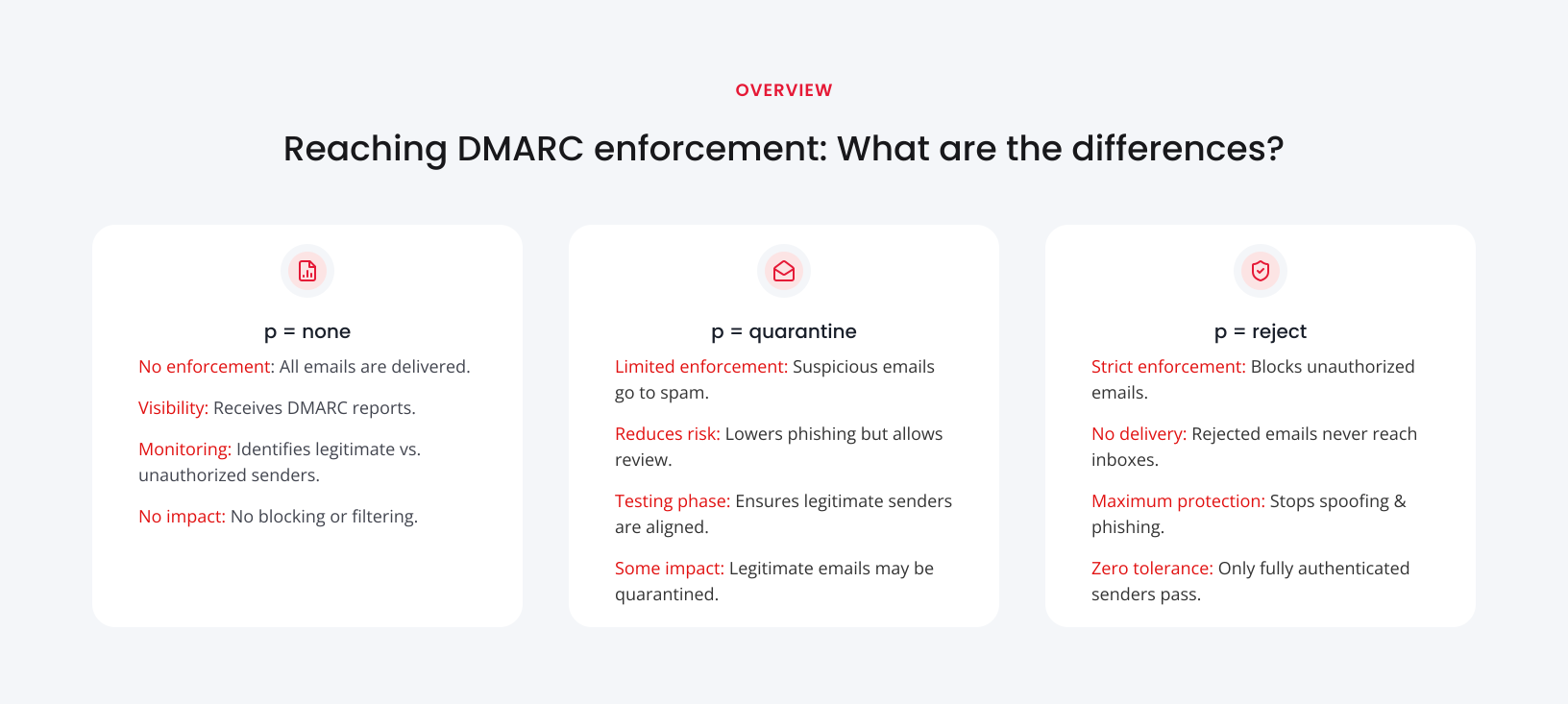
Before enforcing DMARC, you need data to understand your current email landscape and ensure changes won’t disrupt delivery. That’s why DMARC starts in “none” (reporting-only) mode—allowing all emails to be delivered while you gather insights.
Once Red Sift OnDMARC is set up, you’ll receive reports from email servers detailing how your domain is being used. These reports come in two types:
- Aggregate reports (the standard): Sent daily by most email servers, these provide an overview of authentication results.
- Forensic reports (enhanced insights from Red Sift): Sent when an individual email fails DMARC, offering detailed insight into specific authentication issues.
Both reports are in machine-readable XML, but manually analyzing them can be complex. Red Sift OnDMARC simplifies this process, automatically processing reports and providing an easy-to-use dashboard, so you can quickly spot and resolve security issues.
What a DMARC policy would look like?
"v=DMARC1; p=none; rua=mailto:dmarc-reports@example.com; ruf=mailto:forensic@example.com; fo=1"
- p=none: No enforcement, only monitoring. This means emails will still be delivered even if they do not pass checks.
- rua=mailto:dmarc-reports@example.com: Email address to send aggregate reports to. This is where the reporting capability of DMARC comes from.
- ruf=mailto:forensic@example.com: Email address to send failure reports to.
- fo=1: Send forensic failure reports if emails do not pass SPF or DKIM.
For more information on all the possible DMARC record tags and their description, see our email configuration guide here.
Step 2: Review DMARC Reports
Within 24 hours, you should receive your first DMARC report, ready for review.
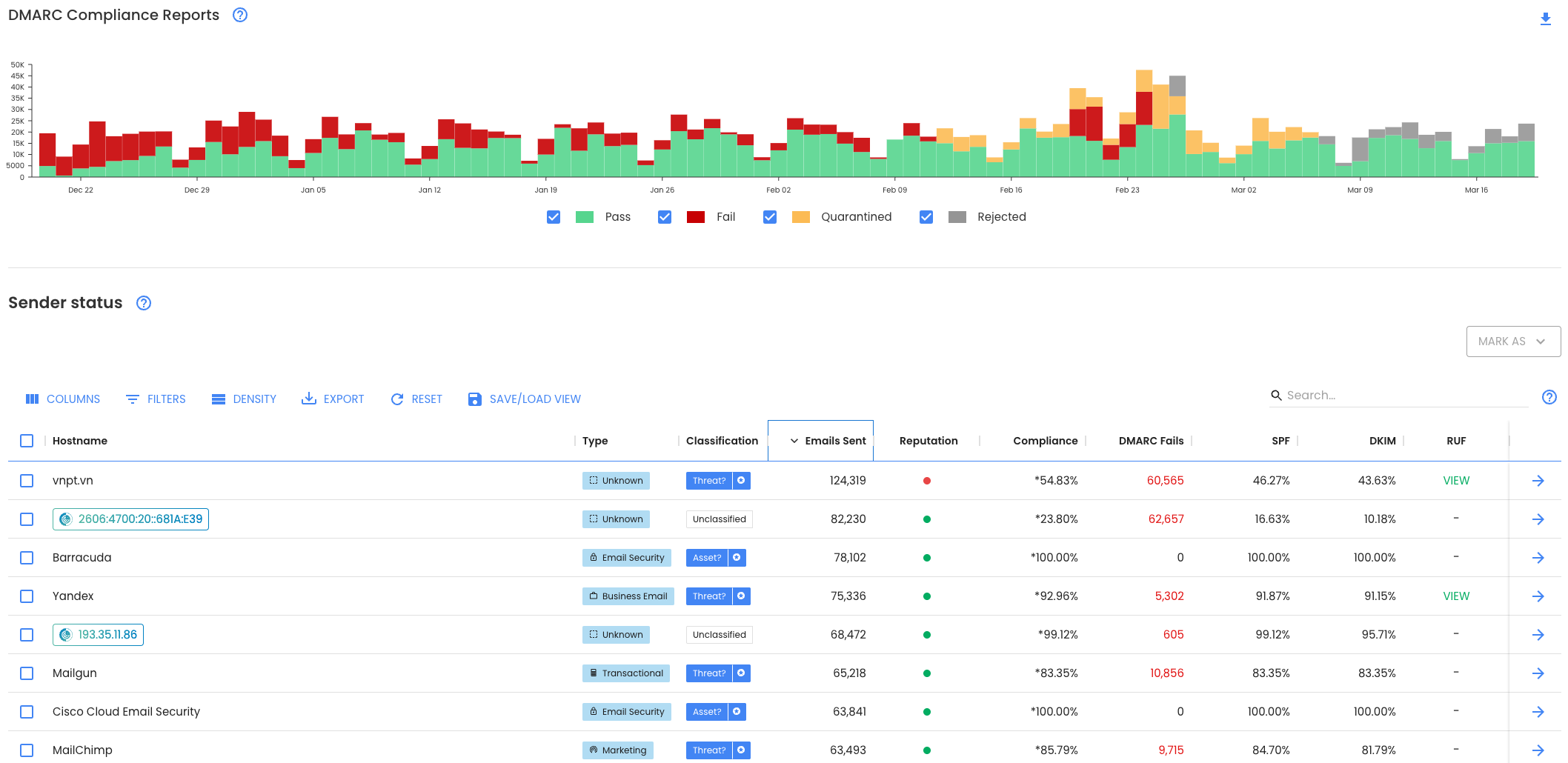
With Red Sift OnDMARC, analyzing your reports is effortless. You’ll quickly see which email sources are authorized, spot any missing configurations, and identify unauthorized senders. These could be legitimate services that need updating or bad actors trying to impersonate your domain.
Your DMARC Reports dashboard provides a clear overview of:
- Total email volume and authentication success rates.
- Pass/fail breakdown for DMARC, SPF, and DKIM.
- A detailed sender list, showing how each service is performing.
With this visibility, you can easily pinpoint and fix issues, ensuring your domain is fully protected.
Step 3: Setup DKIM and SPF for your sending sources
Recommended: Setup Dynamic DKIM and Dynamic SPF
Just like you can point your DMARC record to Red Sift OnDMARC for easy management without manual DNS edits, you can do the same for DKIM and SPF using our Dynamic DKIM and Dynamic SPF services. This means you can manage all your email authentication settings in one place—without the hassle of constantly updating DNS records.
Setup Dynamic DKIM
To set up Dynamic DKIM you will need to copy all of your existing DKIM keys in your DNS into Dynamic DKIM. Then you will point DKIM “_domainkey” for your domain to Dynamic DKIM by adding a single NS record in your DNS.
Afterwards all future management of DKIM keys, adding or removing, can be done through the platform instead of manually editing DNS records manually.
Setup Dynamic SPF
To set up Dynamic SPF you will import your SPF record into Dynamic SPF. Then you will replace everything in your SPF record with a single include pointing to Dynamic SPF.
Your SPF record will look like this: v=spf1 include:_u.example.org._spf.smart.ondmarc.com ~all
~all (soft fail) instead of -all (hard fail) is recommended. For more information on soft fails and hard fails, see our guide on email protocol configuration: https://redsift.com/guides/email-protocol-configuration-guide/spf-failures-hard-fail-vs-soft-fail
Once set up, you can manage your SPF record entirely through the platform, adding or removing mechanisms and without the need for manual DNS edits.
Setup DKIM for your legitimate senders
For legitimate senders, you should aim for near-perfect DKIM compliance in most cases. To achieve this, your DMARC provider must support DKIM and give you clear setup instructions. Typically, this involves either:
- CNAME records pointing to hosted DKIM public keys (preferred).
- TXT records containing the DKIM public keys.
A minimum of 1024-bit DKIM keys is recommended, but if possible, request 2048-bit keys for stronger security. If you're using OnDMARC’s Dynamic DKIM, you can manage DKIM configurations directly in the platform—no manual DNS edits required—reducing risk and saving time.
*Some senders, like Microsoft Exchange Online, make it harder to differentiate between reports from original senders and forwarded emails, which may affect DKIM compliance tracking.
Where applicable, setup SPF for your legitimate senders
For legitimate senders using your domain in their bounce address**, you should configure SPF to authorize their IP addresses.
If you're using OnDMARC’s Dynamic SPF, you can manage these settings directly in the platform, eliminating manual DNS edits, reducing risk, and saving time.
**Bounce address is also known as MAIL FROM, Return-Path and Envelope From.
Step 4: Validate
After making changes, always validate them by sending test emails from each sender to ensure everything is configured correctly.
With Red Sift OnDMARC, you can use the built-in Investigate tool to quickly review authentication results, identify issues, and get clear insights, without manually decoding complex email headers.
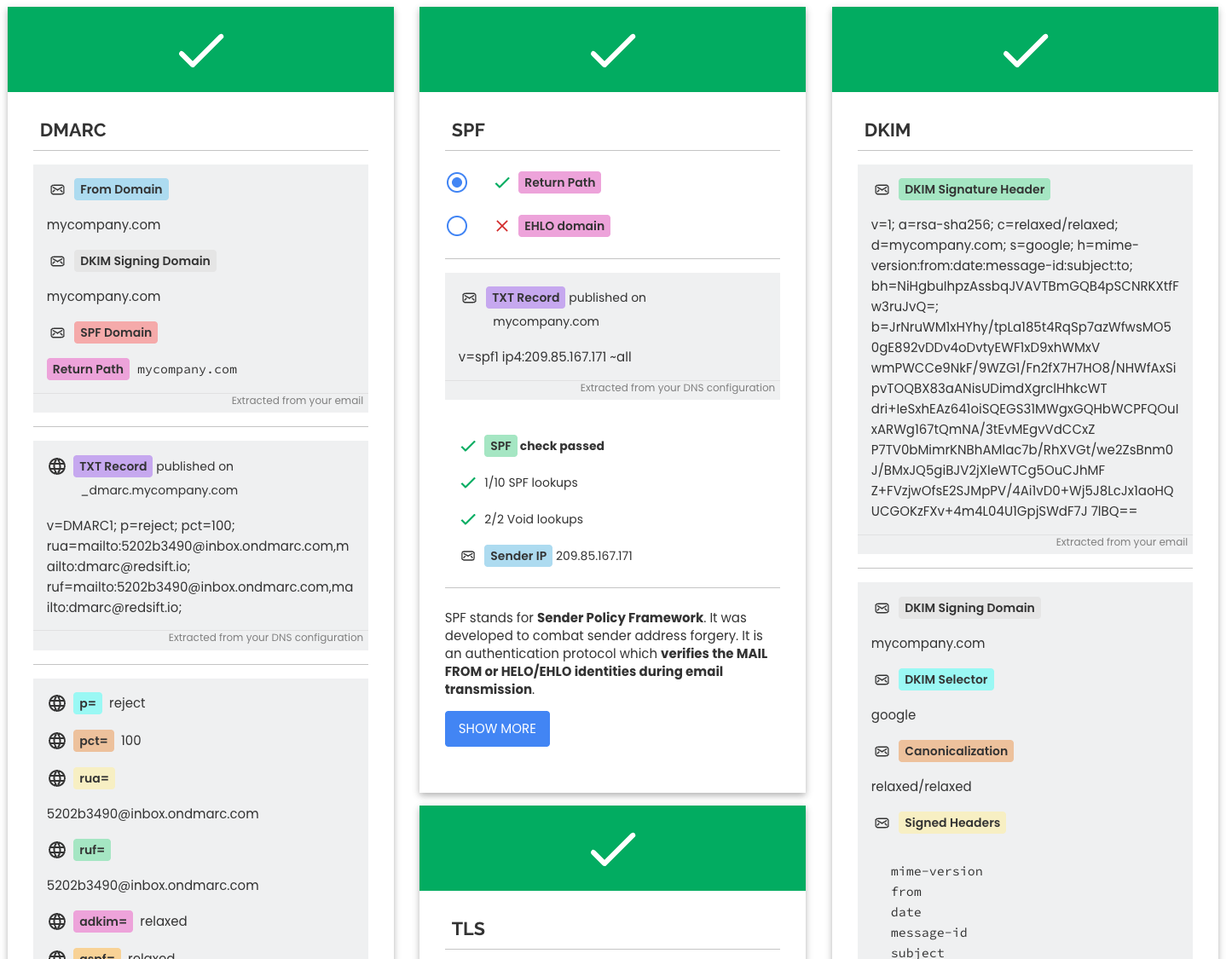
If everything passes, great! If not, review the reasons why and adjust the configuration.
Step 5: Repeat
Repeat Steps 1 - 4 and review, configure, validate until all of your domains and legitimate senders are properly setup and authorised, passing DMARC, DKIM and SPF.
Step 6: Quarantine: Begin protecting your domains
Switching to quarantine from none tells email servers to send unauthorized emails to spam, reducing the risk of phishing and spoofing attacks while allowing monitoring.
Going forward, ensure new sending sources are properly configured before use to avoid email delivery issues!
There’s no difference between an unauthorized, illegitimate impersonation attack and an unauthorized, legitimate sender with a missing configuration. Both will fail authentication. That’s why proper DMARC setup is crucial. Ensuring all legitimate senders are correctly authorized prevents disruptions while blocking real threats.
Step 7: Monitor
After increasing your policy to quarantine, it’s important to monitor your DMARC reports for at least a few days. We recommend checking at least once a week to track which senders are being quarantined and ensure they are truly unauthorized. During this time, listen for any reports from users or stakeholders about legitimate emails unexpectedly landing in spam.
If you find that legitimate emails are being quarantined, take the time to configure and validate the sender. While making these adjustments, you can decide whether to temporarily revert to a ‘none’ policy or continue moving toward full enforcement.
Step 8: Full protection with reject
After spending enough time at quarantine, it’s time to take the final step and enforce a p=reject policy. This provides the strongest protection, preventing malicious actors from impersonating your domain and reducing the risk to employees, customers, vendors, and users.
By setting p=reject, your organization benefits from:
- Complete protection against spoofing and phishing: Unauthorized emails that fail DMARC authentication are automatically rejected, blocking impersonation attempts and reducing the risk of phishing attacks. Combined with security awareness, MFA, and staff training, this strengthens your organization’s defenses.
- Enhanced brand trust: Prevents phishing attacks using your domain, safeguarding your reputation and customer confidence.
- Better email deliverability: Internet Service Provider (ISPs) recognize your authenticated emails as legitimate, reducing the risk of being flagged as spam.
- Full visibility over email activity: DMARC reports help you track authorized and unauthorized email use.
- BIMI eligibility: With DMARC fully enforced, your brand’s logo can appear alongside authenticated emails, improving recognition and trust, leading to higher open rates by 39%.
- Regulatory compliance: Many industry standards and regulations recommend or require DMARC enforcement as part of cybersecurity best practices.
By reaching p=reject, your domain is fully secured, ensuring only legitimate emails are delivered while blocking impersonation attempts.
Step 9: Continue monitoring
Your organization is constantly evolving, and so is your email setup. To maintain DMARC enforcement, regularly check reports to identify new legitimate senders that may need proper configuration. Staying proactive ensures your email security remains strong.
Remember to ensure all of your domains are protected - that includes parked domains that are not actively being used. We recommend you review your list of domains at least quarterly to ensure none are forgotten.
Leading DMARC providers, like Red Sift OnDMARC, make this process seamless by allowing you to add new senders directly through the platform instead of making manual DNS changes. This saves time, reduces errors, and ensures continuous protection without unnecessary complexity.