Create and validate a BIMI SVG P/S logo file with the required tiny-ps profile, solid background, company-name title, and a safe structure under 32 KB.
A BIMI SVG logo file is a brand logo saved in the SVG Portable/Secure profile, version 1.2 with baseProfile="tiny-ps". The file needs one <title> element set to your company name, a solid (non-transparent) background, at least two colors, and no scripts, animation, or external references. It must also be 32 KB or less, uncompressed. For reliable display the logo should also be square and centered.
A compliant SVG P/S file is the image a participating mailbox provider displays once your domain is authenticated. This guide covers the logo file itself. For everything around it, review the BIMI authentication, record, certificate, and provider requirements that apply once the file is ready.
How do you prepare a logo for BIMI SVG P/S?
Preparing a logo for BIMI takes five artwork steps before export. Square the artboard, center the artwork with padding, add a solid background, convert any bitmap to vectors, and convert text to outlines.
Use the SVG editor of your choice. The screenshots use Adobe Illustrator, but the finished-file requirements are the same in any editor.
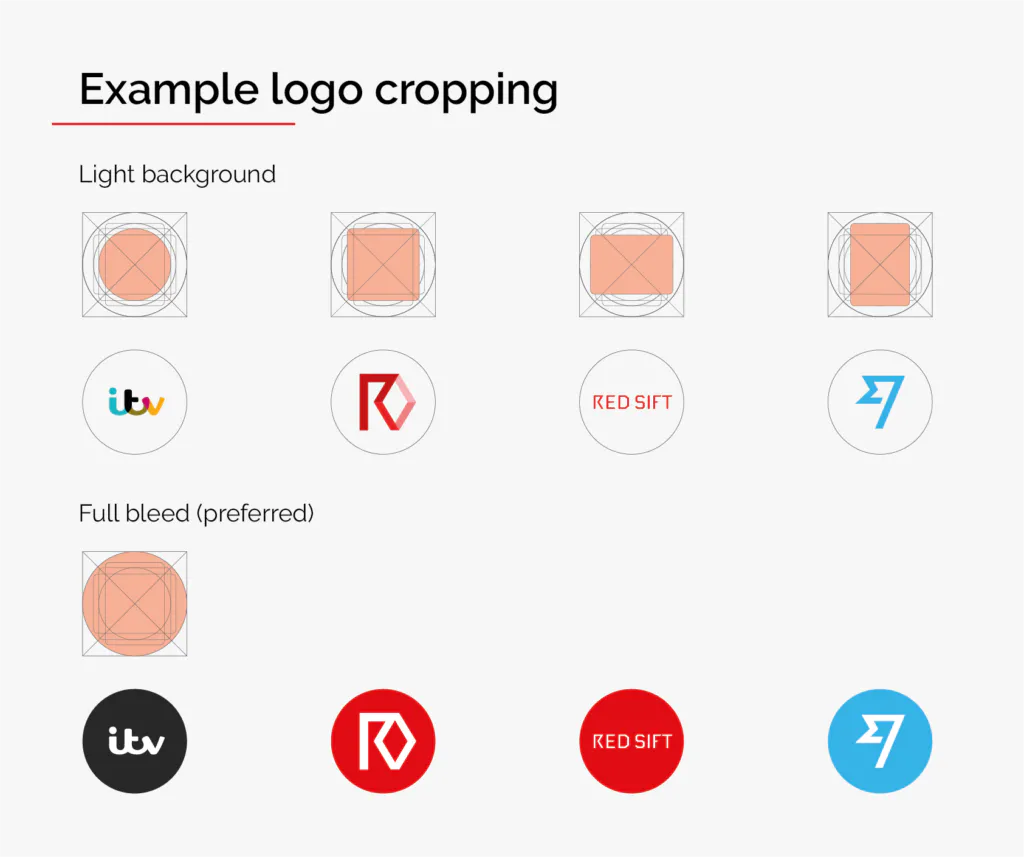
1. Set the artboard to equal width and height. A square aspect ratio is recommended because providers crop the logo to a square, rounded square, or circle, and a square source displays most reliably.
2. Center the artwork with enough padding that it stays legible after that crop.
3. Add a solid, non-transparent background. Transparency can render unpredictably across mailbox providers.
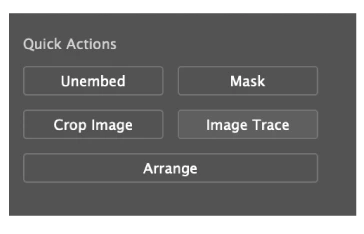
4. Convert embedded bitmap artwork to vectors, or ask the logo designer for a vector source. A BIMI file cannot contain embedded raster images.
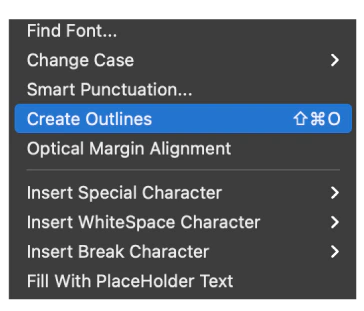
5. Convert logo text to outlines before export. SVG Tiny P/S does allow text, so this isn't a compliance rule, but outlines remove any dependency on an external font and avoid portability and rendering problems across providers.
You don't need to ungroup or flatten everything. Grouping (<g>) is allowed in the SVG P/S profile, so flattening a messy export is optional cleanup at most.
What must the finished SVG P/S file contain?
A valid BIMI SVG P/S file must meet all of the following:
- version="1.2" and baseProfile="tiny-ps" on the root <svg> element
- Exactly one <title> element, non-empty, containing the company name
- A <desc> element is optional. If you include one, it can't be empty
- Renders using at least two colors
- No x or y attributes on the root <svg> element
- No embedded raster images, external references, scripts, animation, interactivity, or linking
- File size of 32 KB or less, uncompressed
Square, centered artwork and a solid background are BIMI Group display recommendations, not schema rules, so they don't decide whether the file is valid.
How do you export the logo from Adobe Illustrator?
You export the file from Illustrator with Save As, choosing plain SVG and the SVG Tiny 1.2 profile.
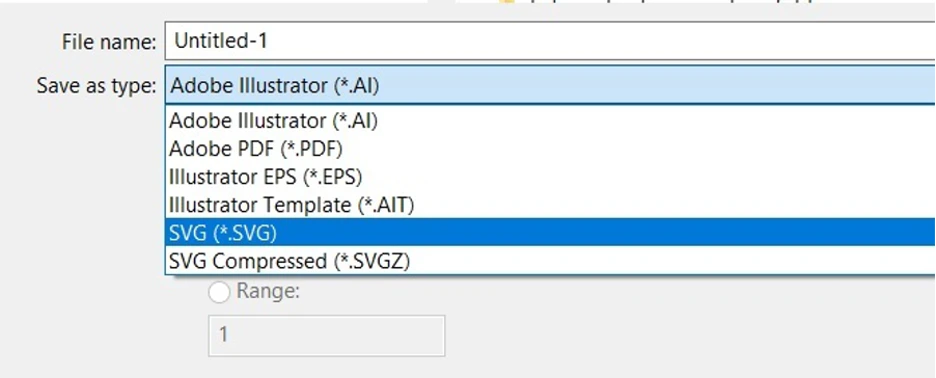
Confirm the artboard is square, then choose File > Save As and select SVG rather than SVG Compressed.
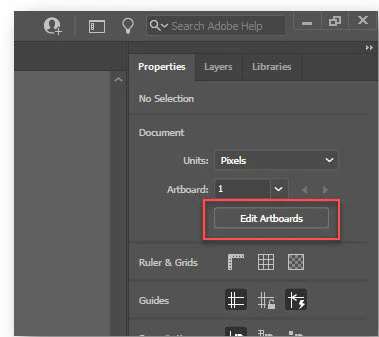
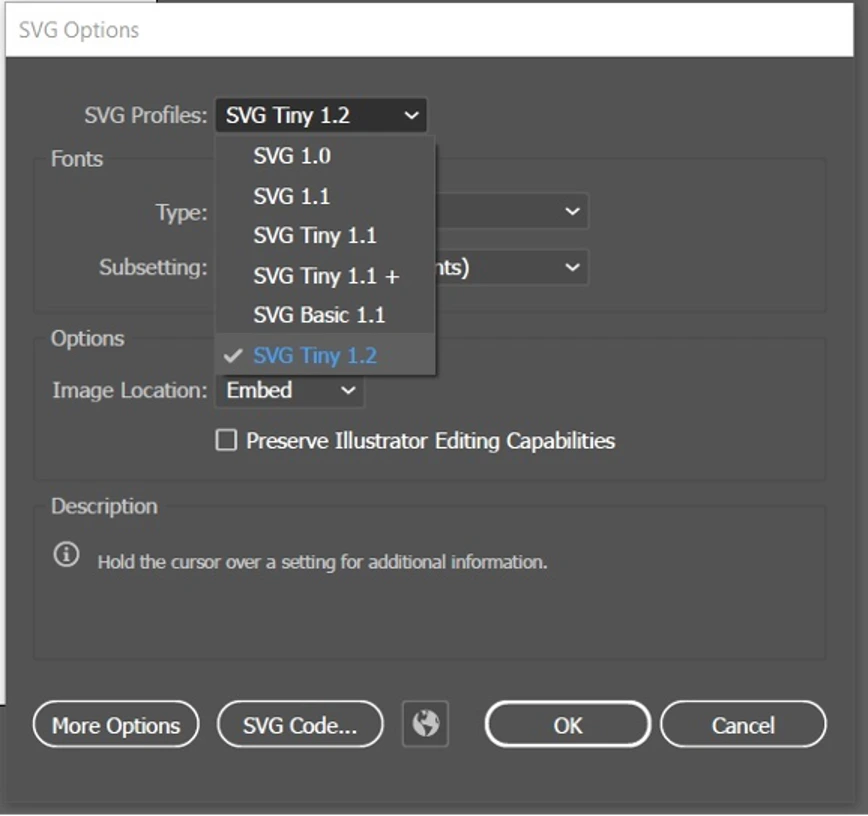
In the SVG Options dialog box, choose SVG Tiny 1.2. Open SVG Code to inspect the exported file before you save the final version. If the code contains no base64, Illustrator produced a vector-only file. The next step changes the profile value to the BIMI-required tiny-ps value and checks the remaining file rules.
How do you finish and validate the SVG P/S code?
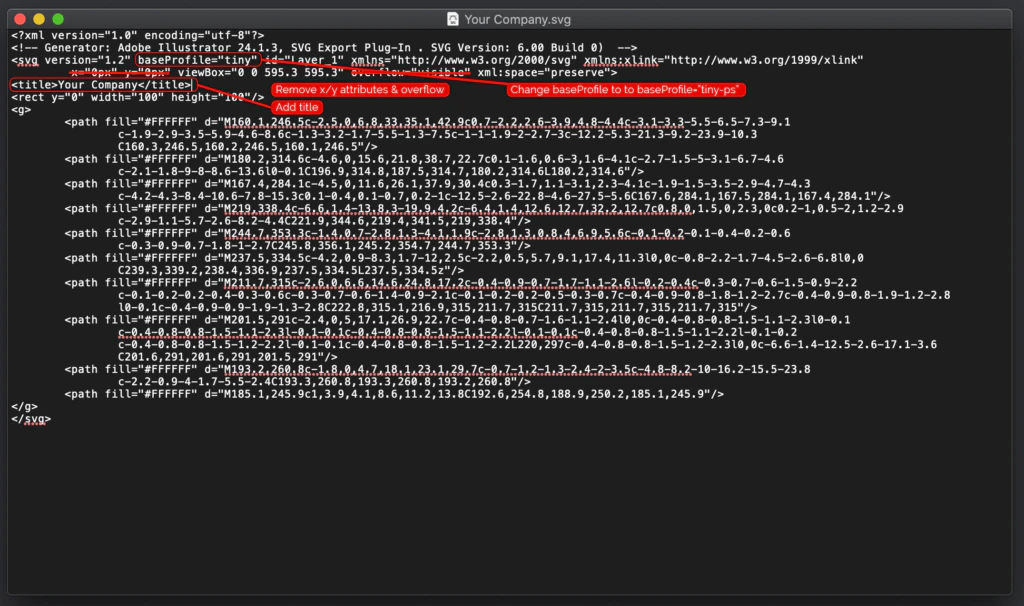
Open the exported SVG in a text or code editor (for example Notepad++, Sublime Text, or Visual Studio Code) and make these BIMI-specific changes.
- Change baseProfile="tiny" to baseProfile="tiny-ps" and keep version="1.2".
- Remove the x and y attributes from the root <svg> element. Illustrator often exports x="0px" y="0px".
- Add a <title> element directly inside the root <svg> element and use the company name as its text. Include a <desc> only if you give it non-empty text.
- Remove any embedded raster images, external references, scripts, animation, interactivity, or linking.
- Save the file, confirm it is 32 KB or less, and validate it before you publish the BIMI record.
How do you check the finished BIMI logo?
Validate the SVG P/S file before you add it to your BIMI record. Validation confirms the file uses the tiny-ps profile, has a non-empty company-name <title>, no root x or y attributes, no prohibited content, and is 32 KB or less. The BIMI Group conversion tools help prepare and convert the file, and you can check whether your domain is ready to display a BIMI logo before you publish the record.
Use the logo in your BIMI setup
Once the SVG P/S file passes validation, you're ready to use OnDMARC to add the logo and complete the remaining BIMI implementation steps.
Frequently asked questions
Why does BIMI require an SVG Tiny P/S logo instead of a normal SVG?
BIMI accepts only the SVG Portable/Secure profile (SVG Tiny P/S 1.2). The profile strips out scripts, external references, animation, and interactivity, which keeps the logo file safe to render inside an inbox. An ordinary SVG or a PNG or JPG will not be accepted.
Why does my SVG logo fail BIMI validation?
The most common causes are the wrong profile value (tiny instead of tiny-ps), leftover x and y attributes on the root <svg> element, a missing or empty <title>, an embedded raster image, or a file over 32 KB. Fix these in a text editor and validate again before publishing the record.
Can a BIMI SVG logo contain text?
Yes. SVG Tiny P/S allows text elements, but it doesn't embed external fonts, so live text can render inconsistently across mailbox providers. Converting text to outlines before export is the safer choice because it removes any dependency on a font and renders the same everywhere.
Does a BIMI SVG logo have to be square?
The BIMI Group recommends a square, centered logo so it displays well when a provider crops it to a square, rounded square, or circle. It's a display recommendation, not a rule that decides whether the SVG file is valid.
What is the maximum file size for a BIMI SVG logo?
The file must be 32 KB or less, uncompressed. Removing embedded fonts, unused metadata, and any raster content usually keeps a vector logo well under that limit.
