Guide de configuration des protocoles email de Red Sift

- DNS setup instructions by Email Service Provider
- TXT record creation guidance
- How to create TXT records for SPF & DMARC with Amazon Route 53
- How to create TXT records for SPF & DMARC with Azure DNS
- How to create an SPF record in DNS using Cloudflare
- How to create TXT records for SPF & DMARC with Fasthosts
- How to create TXT records for SPF & DMARC with Google Domains
- How to create TXT records for SPF & DMARC with Hover
- How to create TXT records for SPF & DMARC with Ionos (Formerly 1&1)
- How to create TXT records for SPF & DMARC with Namecheap
- How to create TXT records for SPF & DMARC with Network Solutions
- How to create TXT records for SPF & DMARC with 123Reg
- DNS setup instructions
- AppRiver SPF and DKIM set up
- Brevo (formerly Sendinblue) SPF and DKIM set up
- Google Workspace SPF and DKIM set up
- Hubspot SPF and DKIM set up
- Kajabi SPF and DKIM set up
- Klaviyo SPF and DKIM set up
- Mailerlite SPF and DKIM setup
- Mandrill SPF and DKIM setup
- Mimecast DKIM signing setup
- Microsoft Dynamics 365 SPF and DKIM set up
- Microsoft Office 365 SPF and DKIM set up
- I get a warning from Microsoft 365 when using Dynamic SPF
- Set up your DKIM for Office 365
- Namecheap Private Email SPF and DKIM set up
- Proofpoint Protection Server (PPS) SPF and DKIM setup
- Salesforce Marketing Cloud SPF and DKIM set up
- Shopify SPF and DKIM record set up
- Squarespace SPF and DKIM set up
- DNS setup instructions by Email Service Provider
- TXT record creation guidance
- How to create TXT records for SPF & DMARC with Amazon Route 53
- How to create TXT records for SPF & DMARC with Azure DNS
- How to create an SPF record in DNS using Cloudflare
- How to create TXT records for SPF & DMARC with Fasthosts
- How to create TXT records for SPF & DMARC with Google Domains
- How to create TXT records for SPF & DMARC with Hover
- How to create TXT records for SPF & DMARC with Ionos (Formerly 1&1)
- How to create TXT records for SPF & DMARC with Namecheap
- How to create TXT records for SPF & DMARC with Network Solutions
- How to create TXT records for SPF & DMARC with 123Reg
- DNS setup instructions
- AppRiver SPF and DKIM set up
- Brevo (formerly Sendinblue) SPF and DKIM set up
- Google Workspace SPF and DKIM set up
- Hubspot SPF and DKIM set up
- Kajabi SPF and DKIM set up
- Klaviyo SPF and DKIM set up
- Mailerlite SPF and DKIM setup
- Mandrill SPF and DKIM setup
- Mimecast DKIM signing setup
- Microsoft Dynamics 365 SPF and DKIM set up
- Microsoft Office 365 SPF and DKIM set up
- I get a warning from Microsoft 365 when using Dynamic SPF
- Set up your DKIM for Office 365
- Namecheap Private Email SPF and DKIM set up
- Proofpoint Protection Server (PPS) SPF and DKIM setup
- Salesforce Marketing Cloud SPF and DKIM set up
- Shopify SPF and DKIM record set up
- Squarespace SPF and DKIM set up
DNS setup instructions by Email Service Provider
In this chapter, we provide guidance on how to create TXT records, as well as specific DNS setup instructions for some of the most popular ESPs - from Mailbox Providers (MBPs) like Gmail and Microsoft to Shopify and Squarespace, through to CRMs such as Salesforce and Hubspot.
TXT record creation guidance
How to create TXT records for SPF & DMARC with Amazon Route 53
- Log in to your Route 53 Console.
- In the navigation pane, choose 'Hosted zones'.
- Choose the domain that you want to add a
TXTorCNAMErecord to. - Choose 'Create record'.
- For 'Routing policy, choose Simple routing, and then choose Next.
- Choose Define simple record.
- In the Define simple record pane, do the following:
- - For Record name, Enter the host name for the TXT record. For example, leave this blank for an SPF record, or enter the value
_dmarcfor a DMARC record. - - For Value/Route traffic to, paste the value you are setting as the destination of the Host or the text value of the TXT.
- - For Record type, choose
TXTorCNAMEas appropriate. - - For TTL (seconds), type
1800. - - Choose Define simple record.
- Allow up to 24 hours for propagation of the newly created record.
For more information on adding TXT records to your domain’s Route53 DNS server, click here.
How to create TXT records for SPF & DMARC with Azure DNS
- Sign in to the Azure portal with your Azure account.
- Create a DNS zone (If a DNS zone for the domain is already created, skip to step 3.)
- At upper left, select Create a resource, then Networking, and then DNS zone.
- On the Create DNS zone page, type or select the following values:
- Name: Type contoso.xyzcontoso.xyz for this quickstart example. The DNS zone name can be any value that is not already configured on the Azure DNS servers. A real-world value would be a domain that you bought from a domain name registrar.
- Resource group: Select Create new, enter MyResourceGroup, and select OK. The resource group name must be unique within the Azure subscription.
- Select Create.
- Create a DNS record
- In the Azure portal, under All resources, open the contoso.xyzcontoso.xyz DNS zone in the MyResourceGroup resource group. You can enter contoso.xyzcontoso.xyz in the Filter by name box to find it more easily.
- At the top of the DNS zone page, select + Record set.
- On the Add record set page, type or select the following values:
- Host: Enter the host name for the
TXTrecord. For example, enter @ for an SPF record, or enter the value_dmarcfor a DMARC record. - Type:
TXT - Value: The value you are setting as the destination of the Host.
- TTL: Determine how long the server should cache information.
- Click 'Save' to publish the newly created record.
For more information on creating DNS records using Azure DNS, click here
How to create an SPF record in DNS using Cloudflare
For this scenario, we will use G Suite as the sending service and our domain would be test.ondmarc.com. To authorize G Suite to send emails on behalf of our domain we need to create the following SPF record in DNS.
v=spf1 include:_spf.google.com ~all
How to create the SPF record
Now that we have the value for our SPF record that needs to be created let’s go ahead and add it to the DNS for test.ondmarc.com in Cloudflare.
1. Log in to Cloudflare.
2. Select the account under which your domain exists.
3. Select the domain (ondmarc.com) under which you would like to create the SPF record.
4. Click the DNS app from the row of apps.
5. You will be presented with the following UI. Create and fill in the fields as shown at the beginning of this article.

- The record type is
TXT - The name of the record in this case would be test.ondmarc.comtest.ondmarc.com.
- The value portion of the record above contains the following:
v=spf1 include:_spf.google.com ~all
We will leave the TTL set to Automatic and click Add Record.
Please allow some time for the record to propagate and be detected.
How to create TXT records for SPF & DMARC with Fasthosts
- Log into your FastHosts account.
- Under the Domain menu click Manage Domains.
- Select the domain name from the list that you wish to add the DNS records to.
- Click into the Configure Advanced DNS link.
- A list of DNS records will be shown.
- Scroll Down the list and click on the blue icon "ADD TXT RECORD"
- Fill out the fields with the following info: a) Hostname: Enter the host name for the TXT record. For example, enter @ for an SPF record, or enter the value _dmarc for a DMARC record. b) Destination TXT Value: The value you are setting as the destination of the Host.
- When the information are entered, click Save.
For more information on managing DNS in Fasthosts, click here.
How to create TXT records for SPF & DMARC with Google Domains
- Log in to your Google Domains account, select your 'Domain', and go to the 'DNS' section.
- Scroll down to the 'Custom resource records' and create the following record(s):
- SPF Record:
- Name: For the SPF record, enter the host name. Typically, you can use "@" to indicate the root domain.
- Type: Select
TXTas the record type. - Data: Enter the value for your SPF record. This value specifies which email servers are authorized to send emails on behalf of your domain.
- TTL: Determine the Time-to-Live for the record. This dictates how long DNS servers should cache the information.
- DMARC Record:
- Name: For the DMARC record, use the host name
_dmarc. - Type: Select
TXTas the record type. - Data: Set the value for your DMARC record. This value defines the DMARC policy and how email receivers should handle emails that fail authentication checks.
- TTL: Set the appropriate Time-to-Live value for the DMARC record.
- Click 'Add' to publish the new record.
How to create TXT records for SPF & DMARC with Hover
- Sign in to your Hover account.
- If you have multiple domain names, choose the domain name you want to edit.
- Select the 'DNS' tab.
- Select 'Add New' and enter the following:
- Host: Enter the host name for the TXT record. For example, leave the host blank for an SPF record, or enter the value _dmarc for a DMARC record.
- TXT Value: The value you are setting as the destination of the Host.
- TTL: Determine how long the server should cache information.
- Select Save.
For more information on managing DNS records with Hover, click here.
How to create TXT records for SPF & DMARC with Ionos (Formerly 1&1)
- Log in to IONOS.
- For the desired domain, click on the gear symbol under Actions and select DNS.
- Click Add Record and select
TXTunder Type. - In the Host name field, specify the desired host, For example, enter @ for an SPF record, or enter the value
_dmarcfor a DMARC record. - In the Value field, paste the value you are setting as the destination of the Host (i.e. the value of the SPF or DMARC record to be used).
- Optional: Select the desired TTL (Time to Live). By default, your settings are immediately active.
- Click Save. The TXT record has now been added.
For more information on adding TXT records in Ionos, click here.
How to create TXT records for SPF & DMARC with Namecheap
- Login to your Namecheap Account, choose 'Domain List' on the left, and click on the 'Manage' button next to your domain.
- Navigate to the 'Advanced DNS' tab from the top menu and click on the 'Add new record' button.
- Select
TXTRecord for 'Type'. - Host: Enter the hostname for the
TXTrecord. For example, leave the host blank for an SPF record, or enter the value_dmarcfor a DMARC record. TXTValue: The value you are setting as the destination of the Host.- TTL: Determine how long the server should cache information.
NOTE: The domain name itself should not be included in the Host field. It means that if you need to add the record for dmarc.yourdomain.tld, dmarc.yourdomain.tld, only dmarcdmarc is to be added as a Host value. For more information, click here.
How to create TXT records for SPF & DMARC with Network Solutions
- Log in to your Network Solutions Account Manager.
- Enter the username and password you created when you purchased your domain from Network Solutions.
- Click Login.
- From the Network Solutions Account Manager, under My Domain Names, click 'Edit DNS'.
- Click 'Change Where Domain Points'.
- Select 'Advanced DNS' and click 'Continue'.
- Open the instructions for the type of DNS record you want to add for your domain. (TXT steps included below)
- Host: Enter the host name for the
TXTrecord. For example, enter @ for an SPF record, or enter the value_dmarcfor a DMARC record. TXTValue: The value you are setting as the destination of the Host.- TTL: Determine how long the server should cache information.
- Scroll down and click 'Continue'.
- Click 'Save Changes' to publish the record.
For more information on managing DNS records with Network Solutions, click here.
How to create TXT records for SPF & DMARC with 123Reg
- Login to your 123Reg Control Panel.
- Search your Domain Name next to DOMAINS and Click on MANAGE.
- Scroll down to Advanced Domain Settings and click on Manage DNS (
A,MX,CNAME,TXT,SRV). - Click on the Advanced DNS tab.
- Select
TXTorCNAMEas the Type and fill out the fields with the following info: a) Hostname: Enter the host name for theTXT/CNAMErecord. For example, enter @ for an SPF record, or enter the value_dmarcfor a DMARC record. b) DestinationTXTValue: The value you are setting as the destination of the Host. - When the information is entered, select Add.
For more information on managing DNS records in 123Reg, click here.
DNS setup instructions
AppRiver SPF and DKIM set up
SPF
AppRiver was bought by Zix, so your SPF record will depend on which product you have.
For more information on SPF at Zix, please click here.
DKIM
For more information on enabling DKIM, please contact AppRiver support.
Brevo (formerly Sendinblue) SPF and DKIM set up
Increase the deliverability of your Brevo (formerly Sendinblue) emails by correctly configuring SPF and DKIM.
SPF
Adding SPF for Brevo (formerly Sendinblue) for DMARC purposes is not needed because the Return-Path address of the emails is set to their default domain in order to track bounces on your behalf. Therefore, SPF will not pass for Brevo from a DMARC perspective, however, as long as DKIM passes, the emails will be DMARC compliant.
DKIM
To enable DKIM you will have to create a few DNS records. Please follow the instructions using the button below for more information.
Google Workspace SPF and DKIM set up
SPF
To authorize Google to send emails on your behalf you will need to create an SPF record that includes the following value:
include:_spf.google.com <-- this part allows all Gsuite IPs to send emails on your behalf.
If you already have an existing SPF record you will just have to copy the include include:_spf.google.com and append it to your current SPF record, however, it has to be put after the v=spf1 and before the ~all ending mechanism in your record.
If you already have an existing SPF record such as:
v=spf1 include:mail.zendesk.com ~all
and you would like to add Gsuite as an additional sending service, you will have to copy the include include:_spf.google.com and append it to your current SPF record.
The final SPF record should look like this:
v=spf1 include:mail.zendesk.com include:_spf.google.com ~all
Do not create a second SPF record if you already have one. You should only have one SPF record per domain/subdomain.
To learn more about SPF and how to configure it for Google Workspace please click here.
DKIM
To implement DKIM for your domain you will have to follow the steps below.
- Log in as administrator and go to the Admin Console.
- Go to Apps --> G Suite
- Click on the Gmail app.
- Click on Authenticate email
- For the key length you can choose between 1024 or 2048. The longer the key the better, however, some DNS providers do not support keys longer than 1024. They should be able to implement 2048 as well but there may be some additional work that needs to be carried out.
- Select your prefix selector, you can leave the default of "google" or type in your own. This will be your DKIM selector.
- Once the key is generated, you will need to take the information provided and put it in your DNS ie. create the
TXTrecord. It will look like the example below, except that you will have to replace the word "selector" below with the one that you created earlier.
Type | Host | TXT value | TTL |
TXT | selector._domainkey | Paste the key generated here | 1 hour (default) |
NOTE: it may take up to 48 hours for the DNS changes to propagate.
Also, you can't add a custom DKIM selector for 24 hours.
For more information please click here.
Hubspot SPF and DKIM set up
SPF
Adding SPF for Hubspot for DMARC purposes is not needed because the Return-Path address of the emails is set to Hubspot's default domain in order to track bounces on your behalf. Therefore, SPF will not pass for Hubspot from a DMARC's perspective, however, as long as DKIM passes, the emails will be DMARC compliant.
DKIM
For information on how to configure DKIM and add the necessary DNS records please click here.
Kajabi SPF and DKIM set up
As Kajabi constantly updates its documentation, please click here for the most accurate information.
Klaviyo SPF and DKIM set up
To authorize Klaviyo to send emails on your behalf and customize those emails to match your domain you will have to carry out full domain whitelabeling. During this process, you will be provided with the necessary DNS records that need to be created so your emails start passing SPF and DKIM.
For more information and instructions on how to complete the full whitelabeling process please click here.
Mailerlite SPF and DKIM setup
Mailerlite provides two ways of authenticating your domain. They can either manage the authentication for you or allow you to manage it yourself. If you let Mailerlite authenticate your emails then your receivers would see Mailerlite as the sender of your emails. If you would like your receivers to see your domain only then you will have to choose the option to authenticate emails yourself.
Configuring SPF and DKIM with Mailerlite for your custom domain is pretty easy. All you have to do is choose Authentication, insert your domain and select Show DNS record.
The necessary SPF and DKIM records will be generated and presented to you which you will then have to add to your DNS. For more information please click here.
Once you have created SPF and DKIM but still showing as inactive in your account, please click here for information on how to troubleshoot this.
Mandrill SPF and DKIM setup
Mandrill is a product created by Mailchimp and is a service used to send transactional emails. To improve your email deliverability, Mandrill requires that every domain of yours is configured with SPF and DKIM.
SPF
To allow Mandrill to send emails on your domain’s behalf, you must include them as part of your SPF record.
The SPF mechanism used by Mandrill is the following:
include:spf.mandrillapp.com
Mandrill uses their own domain as part of the Return-Path address (used by SPF) and hence SPF alignment would not occur. However, this can be modified as per their help article.
For more information, visit the Mandrill help article.
DKIM
To set up DKIM for Mandrill, you will need to add a new TXT record in your DNS.
The name for the TXT record should be:
mandrill._domainkey.yourdomain.comReplace “yourdomain.com” above with the domain you are setting up.
The value of the DNS record should be the following:
v=DKIM1; k=rsa; p=MIGfMA0GCSqGSIb3DQEBAQUAA4GNADCBiQKBgQCrLHiExVd55zd/IQ/J/mRwSRMAocV/hMB3jXwaHH36d9NaVynQFYV8NaWi69c1veUtRzGt7yAioXqLj7Z4TeEUoOLgrKsn8YnckGs9i3B3tVFB+Ch/4mPhXWiNfNdynHWBcPcbJ8kjEQ2U8y78dHZj1YeRXXVvWob2OaKynO8/lQIDAQAB;
After you have added the required DNS records, you can use the Test the DNS Settings button in your control panel to make sure that everything that you have added has a green checkmark. Please allow 24-48 hrs for the DNS changes to take effect.
For more information, visit the Mandrill help article.
Mimecast DKIM signing setup
To setup DKIM signing in Mimecast you need to create a definition and a policy.
Setting up a definition
- Login to Mimecast
- Select Administration console
- From the top left select Administration > Gateway > policies
- Select definitions drop down select DNS Authentication - Outbound
- Select New DNS Authentication - Outbound signing
- Set a name for the definition
- Tick the checkbox Sign outbound mail with DKIM
- Use the lookup option to select domain to DKIM sign
- Select generate
- Create a
TXTrecord within your DNS with the public key provided save and exit - Verify public key in Mimecast console
Setting up a policy
- Login to Mimecast
- Select Administration Console
- From the top left select Administration > Gateway > policies
- Search for DNS authentication outbound
- Select New Policy
- Name the policy
- Under emails from use address based on "Both"
- Save and Exit
Microsoft Dynamics 365 SPF and DKIM set up
SPF
To authorize Microsoft Dynamics 365 to send emails on your behalf, you must include it in your SPF record. The SPF record mechanism used for Microsoft Dynamics 365 is shown below. Find more information here.
include:marketing.dynamics.com
DKIM
Microsoft Dynamics 365 supports DKIM signing for your custom domain. For more information on how to set it up please click on the button below. Find more information here.
Microsoft Office 365 SPF and DKIM set up
Set up your SPF record for Office 365
To authorize Microsoft 365 (formerly Office 365) to send emails on behalf of your domain you will have to add it to your SPF record. The SPF record mechanism used for Microsoft 365 is:
include:spf.protection.outlook.com <-- this part allows all Office 365 IPs to send emails on your behalf.
If Microsoft 365 is your only legitimate source of emails, your SPF record should look like the below example:
v=spf1 include:spf.protection.outlook.com ~all
If you already have an existing SPF record such as:
v=spf1 include:mail.zendesk.com ~all
and you would like to add Office 365 as an additional sending service, you will have to copy the include include:spf.protection.outlook.com and append it to your current SPF record. The final SPF record should look like this:
v=spf1 include:mail.zendesk.com include:spf.protection.outlook.com ~all
However, do not create a second SPF record if you already have one. You should only have one SPF record per domain/subdomain.
I get a warning from Microsoft 365 when using Dynamic SPF
If you are using Dynamic SPF and you also use Microsoft 365 for email, you may have noticed that Microsoft will give you a warning about your SPF include being incorrect.
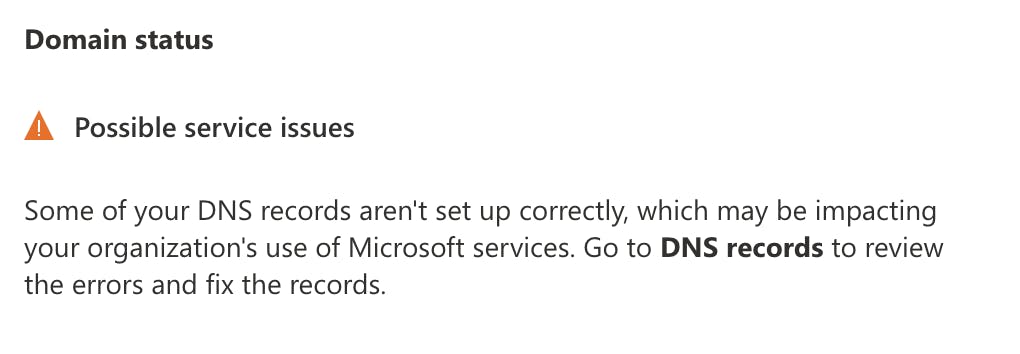
This is expected and you can safely ignore it. Microsoft is looking for the literal string they provide in your DNS and does not know that their IP ranges are already included in Dynamic SPF.
You can test Dynamic SPF is working correctly by sending a test email to the address listed in the Investigate section of the OnDMARC console.
Set up your DKIM for Office 365
In order to DKIM sign your custom domain emails you will need to complete the following steps.
Creating the CNAME records
The CNAME records are used to map an alias name to the true or canonical domain name. In essence, when you provision a new domain name in Microsoft 365 you will need to create two CNAME records for it so that it points to your initial domain.
We will use example.onmicrosoft.com as our initial domain, also called the tenant domain. But we actually own example.com and after we provision it in Office 365 we need to publish the two CNAME records so that example.com points to example.onmicrosoft.com using the format below.
Please note that if you are a Microsoft 365 US Government Cloud (GCC) customer, the domainGUID method below will not work for you. You will need to use the proper MX value for your domain. Example:
selector1-<domain-key>._domainkey.<initialDomain>
Use this article to find the MX record needed for your domain-key value.
Host name: selector1._domainkey.<domain>
Points to address or value: selector1-<domainGUID>._domainkey.<initialDomain>
TTL: 3600
Host name: selector2._domainkey.<domain>
Points to address or value: selector2-<domainGUID>._domainkey.<initialDomain>
TTL: 3600
In our example the CNAME records will look like this:
Host name: selector1._domainkey.example.com
Points to address or value: selector1-example-com._domainkey.example.onmicrosoft.com
TTL: 3600
Host name: selector2._domainkey.example.com
Points to address or value: selector2-example-com._domainkey.example.onmicrosoft.com
TTL: 3600
Please pay close attention to the domainGUID which does not use a full stop "." but a dash "-" instead. This is taken from the MX record of your custom domain, in this case, example.com.example.com.
The reason behind the two CNAME records is that Microsoft rotates the two keys for added security.
Enabling DKIM signing
Once you have added the CNAME records (two per domain) DKIM signing can be enabled through the Microsoft 365 Security admin center at http://security.microsoft.com/dkimv2
For more information on how to configure DKIM in Office 365 please click here.
Namecheap Private Email SPF and DKIM set up
SPF
To authorize Namecheap Private Email to send emails on your behalf you will have to include it in your SPF record. The SPF record mechanism used is shown below.
include:spf.privateemail.com
For more information on SPF set up for Namecheap Private Email please click here.
DKIM
For instructions on how to set up DKIM, please click here.
Proofpoint Protection Server (PPS) SPF and DKIM setup
SPF
To authorize Proofpoint to send emails on your behalf, you must include it in your SPF record. Refer to your Deployment Information email for the details, as the SPF is unique to each PPS cluster.
It usually follows the format:
include:spf-{clusterid}.pphosted.comDKIM
To set up DKIM on PPS, follow these steps:
- Navigate to Email Protection tab > Email Authentication > DKIM Signing > Keys
- Click Generate Key to create a key for a domain and selector. Each key must have a unique domain and a unique selector within the domain. Proofpoint-generated domain keys are 2048-bits in length.
- At the Generate Key Entry dialog box type or specify your domain, the selector, the scope of the key, and the policy routes. For the policy routes, only check Disable processing for selected policy routes… Under Available scroll down and select default_inbound Click the >> to add it to Disable For Any Of:
- Click on Add Entry.
- Click View in the DNS Text Record column to see the text record for a DKIM key.
- A pop-up window displays the DNS text record that contains the public key. Copy the DNS text record for each domain-selector pair to your DNS servers
- Once the DNS record has been created, wait a few minutes to ensure the record has time to propagate.
- On the PPS Admin Console and click on Test to verify if the DNS record was created correctly.
- The feedback for the test will appear above the navigation tabs (System, Email Protection, Information Protection).
- Once the DNS record has been validated click the Enabled box and then click Save Changes.
- Turn on DKIM Signing by navigating to Email Protection tab > Email Authentication > DKIM Signing > General
- Click On next to Enable
- Click Save Changes
For more details or detailed screenshots, refer to the Proofpoint documentation here.
Salesforce Marketing Cloud SPF and DKIM set up
SPF
To authorize Marketing Cloud to send emails on your behalf you will have to include it in your SPF record. The SPF record mechanism used for Marketing Cloud is shown below. Found out more here.
include:cust-spf.exacttarget.com
DKIM
If you have the Sender Authentication Package you will be able to enable DKIM. Please contact your account manager at Marketing Cloud for more information.
Shopify SPF and DKIM record set up
What is the SPF record mechanism and DKIM selectors used by Shopify that I need to configure in DNS?
SPF
To allow Shopify to send emails on your behalf you will have to add it to your SPF record. The SPF record mechanism used for Shopify is shown below.
include:shops.shopify.com
DKIM
To set up DKIM for Shopify, you can authenticate your domain by clicking Authenticate on the Sender email page of your Shopify admin console. A new window will open and provide you with instructions on how to create four new records with your domain provider.
Custom domain settings for Shopify
Squarespace SPF and DKIM set up
SPF
To allow Squarespace to send emails on your behalf, you will have to add them to your SPF record. The SPF mechanism used by Squarespace is shown below.
include:squarespace-mail.com
DKIM
For DKIM support, you need to create a CNAME record in your DNS.
It should have the following properties:
Host: squarespace._domainkeyValue: squarespace-domainkey.squarespace-mail.comFor more information please click here.

Questions fréquemment posées : Guide de configuration des protocoles email
À l’époque pré-DMARC, les enregistrements SPF utilisaient couramment le mécanisme « -all » pour appliquer strictement les politiques d’expéditeur. Cependant, les recommandations actuelles de l’industrie en 2026 privilégient « ~all » pour équilibrer sécurité et délivrabilité, évitant le rejet inutile d’emails légitimes qui pourraient échouer au SPF mais réussir le DKIM et DMARC.
Cela s’explique car « ~all », lorsqu’il est mis en œuvre avec DMARC (à p=reject), permettra toujours de rejeter le courrier non authentifié si SPF et DKIM échouent, sans pour autant bloquer les emails légitimes, ce qui améliore la délivrabilité globale.
La spécification DMARC (RFC 7489) précise qu’un préfixe « - » sur le mécanisme SPF de l’expéditeur, comme « -all », peut déclencher un rejet anticipé, donc avant toute analyse DMARC. Utilisez « -all » uniquement pour les domaines inactifs qui n’envoient jamais d’emails. DMARC ne tient pas compte des nuances entre soft fail et hard fail dans la configuration SPF, les considérant tous deux comme des échecs SPF.
DMARC ne nécessite pas seulement que SPF ou DKIM passe, mais exige aussi qu’au moins un des domaines utilisés par SPF ou DKIM s’aligne avec le domaine trouvé dans l’en-tête From. Un alignement correct est essentiel pour la délivrabilité email en 2026, car les principaux fournisseurs de messagerie imposent désormais ces exigences.
Pour SPF, l’alignement des identifiants signifie que la vérification MAIL FROM/Return-PATH doit passer et que la partie domaine du MAIL FROM/Return-PATH doit correspondre au domaine de l’adresse From. En mode d’alignement strict, les domaines doivent être identiques alors qu’en mode relâché, les sous-domaines sont également acceptés tant qu’ils appartiennent au même domaine organisationnel.
Par exemple, si le MAIL-FROM/RETURN-PATH est @ondmarc.com et que l’en-tête From est @knowledge.ondmarc.com, ils ne sont pas alignés en mode strict. Cependant, en mode relâché, DMARC validerait l’email.
Un rapport agrégé DMARC contient des informations sur l’état d’authentification des messages envoyés au nom d’un domaine. Il s’agit d’un rapport de retour XML conçu pour offrir une visibilité sur les emails ayant passé ou échoué aux contrôles SPF et DKIM. Ce rapport offre aux propriétaires de domaine une vision précise des sources qui envoient en leur nom et du sort réservé à ces emails (la politique appliquée par le récepteur).
Les destinataires consulteront le tag 'rua' de votre enregistrement DMARC pour envoyer les rapports. Vous pouvez spécifier l’intervalle des rapports agrégés avec le tag ri dans votre enregistrement DMARC (par défaut, défini à 86400 secondes, soit 24h). Les rapports médico-légaux contiennent des informations plus détaillées sur chaque échec d’authentification. Toute information personnelle est retirée, mais les données utiles à l’investigation du problème DMARC sont incluses, comme les informations d’échec d’en-tête SPF et DKIM, l’adresse complète de l’expéditeur et l’objet du courriel.
L’adresse de réception des rapports médico-légaux DMARC est spécifiée par le tag 'ruf' de votre enregistrement. Tous les systèmes destinataires ne prennent pas en charge l’envoi de rapports médico-légaux. Red Sift OnDMARC est l’une des rares solutions DMARC du marché à les recevoir grâce à son partenariat avec Yahoo.
Une macro SPF désigne un mécanisme utilisé dans les enregistrements SPF permettant de définir des ensembles réutilisables d’adresses IP. Les macros SPF offrent une flexibilité et une maintenabilité accrues en permettant de définir des ensembles complexes d’IP dans un seul mécanisme, qui peut ensuite être référencé dans plusieurs enregistrements SPF. Par exemple, au lieu d’énumérer chaque adresse IP autorisée, vous pouvez définir une macro comme « %{i} » qui fait appel à l’IP d’expédition de l’email. Gérer SPF de cette manière offre un meilleur contrôle sur de grandes listes IP sans dépasser la limite de consultation SPF, tout en masquant les IP autorisées lors d’une requête publique.
Cependant, selon la structure de l’enregistrement SPF avec macros, l’absence de développement des macros peut entraîner des échecs SPF ou des résultats « Neutre » (notés ?all). Si les macros SPF jouent un rôle clé dans l’autorisation de serveurs d’envoi légitimes, les emails risquent de plus facilement échouer aux contrôles SPF ou d’être considérés comme suspects par les systèmes utilisant SPF pour l’authentification.
Mail Transfer Agent Strict Transport Security (MTA-STS) est une norme qui permet de chiffrer les messages envoyés entre deux serveurs de messagerie. Elle indique aux serveurs expéditeurs que les emails ne peuvent être transmis qu’en connexion sécurisée via Transport Layer Security (TLS), empêchant ainsi l’interception par des cybercriminels.
L’adoption de MTA-STS a fortement progressé, les organisations en 2026 considérant la sécurité de la couche transport comme essentielle pour protéger les emails en transit. Pour activer MTA-STS sur un domaine destinataire, il faut annoncer la prise en charge MTA-STS dans le DNS et publier un fichier de politique sur son site web.
L’activation de MTA-STS doit se faire avec précaution afin d’éviter de bloquer la réception d’emails. Il est conseillé de d’abord déployer MTA-STS en mode test, afin que les rapports TLS permettent de détecter et corriger les éventuelles erreurs avant de passer à l’application stricte. Cette démarche progressive deviendra probablement la norme en 2026 pour les organisations renforçant la sécurité du transport.
Le SMTP TLS Reporting (ou TLS-RPT) permet de rapporter les problèmes de connectivité TLS rencontrés par les MTAs expéditeurs, conformément à RFC8460. À l’instar de DMARC, TLS-RPT utilise des rapports transmis par email pour avertir le propriétaire d’un domaine en cas d’échec de livraison dû à des problèmes TLS. Ces rapports incluent les politiques MTA-STS détectées, des statistiques de trafic, les connexions échouées et les raisons de l’échec.
Avec la fonction MTA-STS de Red Sift OnDMARC, vous n’avez plus besoin de gérer un déploiement complexe. Il suffit simplement d’ajouter les Smart Records MTA-STS fournis par OnDMARC à votre DNS et Red Sift prend en charge tout le reste : hébergement du fichier de politique MTA-STS, gestion du certificat SSL, et signalement de toute violation détectée via un rapport TLS. En 2026, les plateformes DMARC modernes incluent de plus en plus MTA-STS hébergé par défaut, facilitant ainsi le déploiement de la sécurité du transport.
Publié sous RFC 7671, DANE (DNS-based Authentication of Named Entities) introduit une nouvelle norme Internet pour établir une communication TLS entre client et serveur sans dépendre des Autorités de Certification (CA) classiques.
Le modèle traditionnel requiert qu’un CA puisse délivrer un certificat pour n’importe quel domaine. DANE procède autrement, s’appuyant sur l’infrastructure DNSSEC (Domain Name System Security Extensions) pour lier un nom de domaine à un certificat. DANE exploite le protocole DNSSEC existant pour garantir l’authenticité et l’intégrité des données reçues.
DANE introduit aussi un nouvel enregistrement DNS de type TLSA qui signale au client que le serveur supporte TLS. Il est recommandé de mettre en place à la fois MTA-STS et DANE. DANE est requis par de nombreuses administrations, en particulier dans l’UE pour les organismes publics.
DANE et MTA-STS ne sont utiles que si l’expéditeur les prend en charge, or beaucoup ne supportent qu’un seul de ces mécanismes. Déployer les deux améliore donc la sécurité générale. En 2026, les organisations mettent souvent d’abord en place MTA-STS pour une compatibilité maximale, puis ajoutent DANE là où le niveau de sécurité doit être renforcé.
La politique de sous-domaine permet aux administrateurs de protéger différents domaines et sous-domaines selon leur niveau d’avancement dans l’adoption de DMARC. Par exemple, si tous vos services d’envoi au nom du domaine principal sont bien configurés avec SPF et DKIM, vous pouvez protéger votre domaine principal avec une politique DMARC p=reject tout en utilisant p=none sur les sous-domaines, voire l’inverse.
Par ailleurs, si un de vos services d’envoi n’est pas compatible DMARC (il ne prend pas en charge SPF ou DKIM), vous pouvez décider de lui attribuer un sous-domaine dédié et une politique DMARC différente, sans pour autant que cela empêche la protection de vos autres domaines. Cela permet de répartir le trafic sur plusieurs sous-domaines et de protéger chacun en fonction de son besoin.